
User and operator guide · Operations
Manage Applications From The Catalog Cockpit
On this page
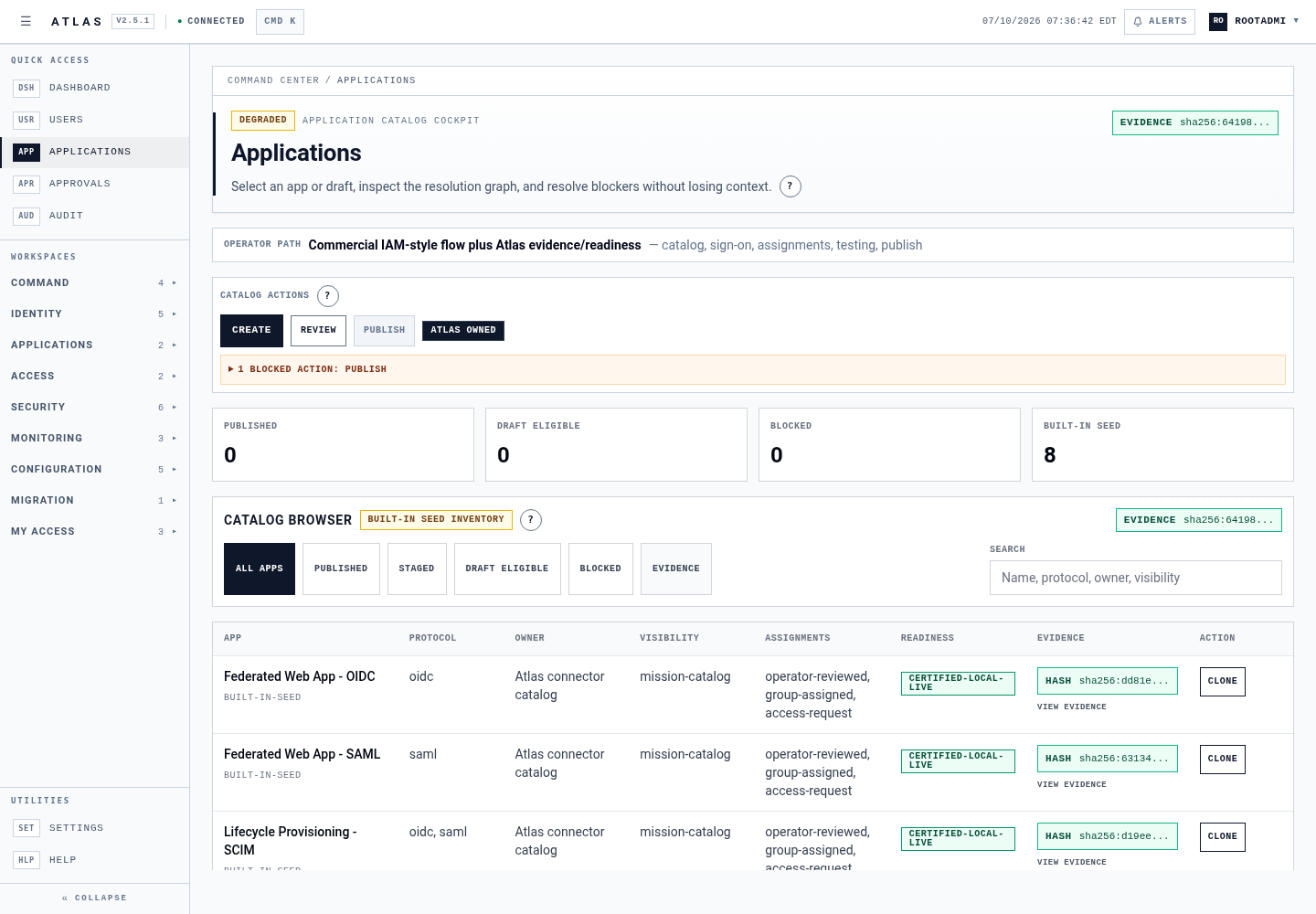
Open ApplicationsFind An App Or TemplateRead A Catalog RowUse The Manage EditorInspect Who Has AccessResolve A BlockerPublication RulesTroubleshootingRelated TasksUse Applications when you need to answer: what apps exist, what drafts can be published, what is blocked, what templates are available, and what proof exists. The page is a catalog-anchored cockpit: select an app or draft, open the tabbed Manage editor, and resolve the next blocker without jumping through unrelated workbench screens.
If you are used to a commercial identity platform application administration flow, the Atlas path should feel familiar: catalog, sign-on, assignments, testing, and publish. Atlas adds evidence hashes, readiness blockers, RBAC/ABAC-scoped suggestions, DDIL/security posture, and audit proof so the operator can see why an app is ready or blocked before making a change.
The normal workflow is:
-
Open Applications.
-
Select an app, draft, or template.
-
Probe or import the target when you create a new draft.
-
Configure sign-on.
-
Assign users or groups.
-
Run positive and negative tests.
-
Publish with current evidence.
Open Applications
-
Sign in as an operator.
-
Open Applications or go to
/applications. -
Confirm the header says Applications.
-
Check the source badge:
Badge Meaning Durable catalog storeCatalog data is coming from the service-owned catalog store.
Gateway application state plus connector seed inventoryAtlas is showing live gateway app/draft state plus built-in connector templates.
Built-in seed inventoryNo tenant apps are present yet. Rows are templates only.
Backend unavailableThe browser reached the route, but catalog data could not be loaded.
/applications/catalog remains a compatible URL and opens the same cockpit. Use /applications as the normal entry point.
Find An App Or Template
-
Use All Apps for the complete view.
-
Use Published for active or staged app instances.
-
Use Draft Eligible for drafts that have current readiness proof.
-
Use Blocked for drafts that cannot publish.
-
Use Evidence for rows with current proof hashes.
-
Search by name, protocol, owner, visibility, assignment mode, or publication state.
Read A Catalog Row
Each row separates the object type from the action you can safely take. Published apps show Manage. Staged apps show Review. Ready drafts show Publish gate. Blocked drafts show Fix readiness. Template rows show Clone.
| Field | How to use it |
|---|---|
App |
Shows the row name and whether it is a live app, staged app, eligible draft, blocked draft, or built-in seed template. |
Protocol |
Shows the sign-on or integration protocol the row expects. |
Owner |
Shows who owns review and publication evidence. |
Visibility |
Shows whether the row is private, mission catalog, or catalog-ready. |
Assignments |
Shows the request or assignment mode. |
Readiness |
Shows whether the row is validated, evidence-required, degraded, or blocked. |
Evidence |
Shows the current hash when proof exists. |
Action |
Opens the tabbed Manage editor for the selected app in place. Evidence remains available as View evidence, but it is not the default action unless you choose it. |
Use The Manage Editor
The Applications catalog cockpit lists every published app, staged draft, and built-in seed connector; each published row exposes a Manage action.
Selecting Manage on a published catalog row opens the Manage editor in place: a modal with four tabs. The deep link ?application=<id>&manage=general opens any app straight to a named tab.
| Tab | What you do here |
|---|---|
General |
Edit the catalog-facing fields — name, display name, app label, logo, description, visibility, and end-user notes. Saving writes in place through |
Sign-on |
Edit the service-provider trust settings (certificate, ACS URL, entity ID, NameID format) and view the Atlas IdP handoff. These changes keep the full publish gate: Save & re-test sign-on re-runs readiness and stages a new version. |
Access |
Grant access by group, attribute, or person in one click through |
Advanced |
The full nine-node readiness graph — Overview, Readiness, Sign-on, Provisioning, Assignments, Policy, Testing, Evidence, Publish — with evidence references, blocker detail, live testing, and the publish gate, unchanged from the earlier Manage graph. This is the only tab that shows raw dotted-path detail. |
General edits and access grants are security-inert and apply immediately. Anything that changes what the app trusts (Sign-on) or its publish posture (Advanced) stays behind the readiness and publish gate.
Inspect Who Has Access
The Access tab carries an inspector so you can prove an assignment before you rely on it.
-
The Who has access roster (
GET /api/v1/applications/{id}/access-roster) shows per-state counts — assigned, test access, eligible, requestable, and blocked — plus a member table giving each person’s state, a plain-English reason, and the rule provenance behind the grant. -
Check a person takes a username or email (the existing
assignment-explainendpoint) and returns a verdict: the person WILL get the app (and via which rule) or will NOT get it automatically.
Resolve A Blocker
-
Select the app or draft row and choose Manage.
-
Open the Advanced tab, read the "why this opened" message, and start with the highlighted node and the checklist item marked as the current blocker.
-
Use the primary node action to inspect or fix the next node in context.
-
If a blocker comes from a technical readiness path, Atlas shows a plain-language label first. For example,
domain.testing.vendorInteroperability.resultsappears as Vendor interoperability test results; expand Details to see the raw path. -
Use View evidence or Export package only when your task is evidence inspection or export.
Focused routes such as /applications/test, /applications/publish, and /applications/evidence still exist. They open with the same selected app header and readiness context, so you can return to Applications without wondering what changed.
Publication Rules
Catalog browsing does not publish an application. Publication remains blocked until Atlas has:
-
owner approval
-
protocol readiness
-
provisioning readiness where required
-
assignment and access-review posture
-
policy binding and negative-path proof
-
rollback or package evidence
-
a fresh operator session at the required assurance level
Built-in seed rows are not tenant applications. Clone them into the editor, validate them, then review the publish gate.
Troubleshooting
| Symptom | Action |
|---|---|
No published apps |
Create or import an application draft in Applications > Editor. |
Only seed templates are shown |
This is expected in a new environment. Seed templates show supported patterns, not live apps. |
A row says |
Open the row action, inspect the responsible graph node, run readiness validation, and attach proof before publication. |
Publish is disabled |
Open the graph from the row, inspect Publish, and review the missing readiness, approval, rollback, assurance, or evidence item. |